Getting Started
How to Access Solid Edge
Via Web Browser (Easy)
To access Solid Edge, log in to the website here with the credentials your teacher provides: SOLID EDGE WEBCLIENT
The first time you log in, you will be prompted to create a new password. Be sure to save the new password so you cannot lose it.
Once logged in click the icon titled Session Desktop. This will let you open Solid Edge and access shared files through the internet.
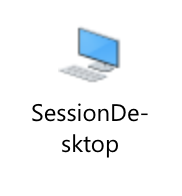
Once you click the icon, the following pop-up will appear. Click Allow to continue.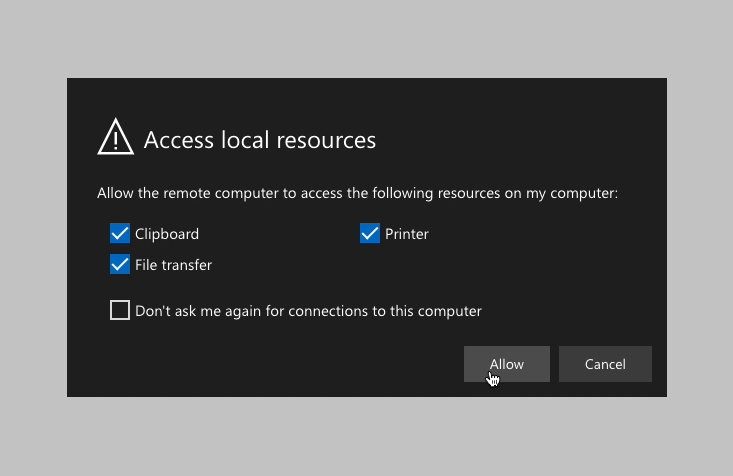
Tip: Click “Don’t ask me again…” so that the pop-up won’t appear every time you log in.
When prompted, enter your password a second time.
Click the blue Solid Edge icon on the desktop:
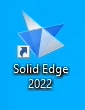
The first time you log in, you’ll be prompted to choose your application settings. You can leave these as is and click OK.
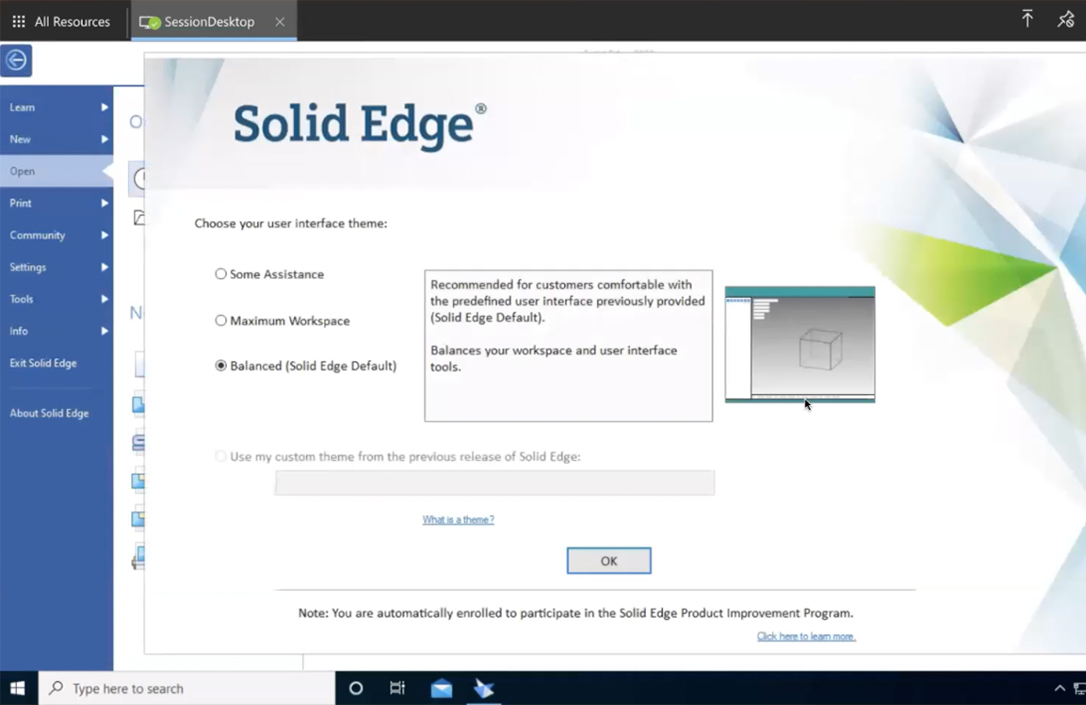
Tip: If you ever want to change these settings, select Settings from the blue sidebar on the left.
At this point you’ll be within Solid Edge’s main interface and all set up to design. Good luck!
Via Remote Desktop App
If you have permission to install new software on your machine, you can also access Solid Edge via an app.
First, install Microsoft Remote Desktop Client.
- On a Mac, you can find this in the MAC APP STORE.
- On a PC, you can download it HERE.

After installing the app, launch it and add a workspace. You can do this through the menu at the top, or by clicking Workspaces, then Add Workspace.
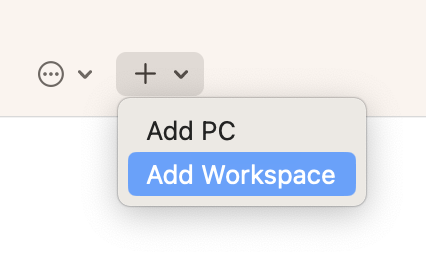
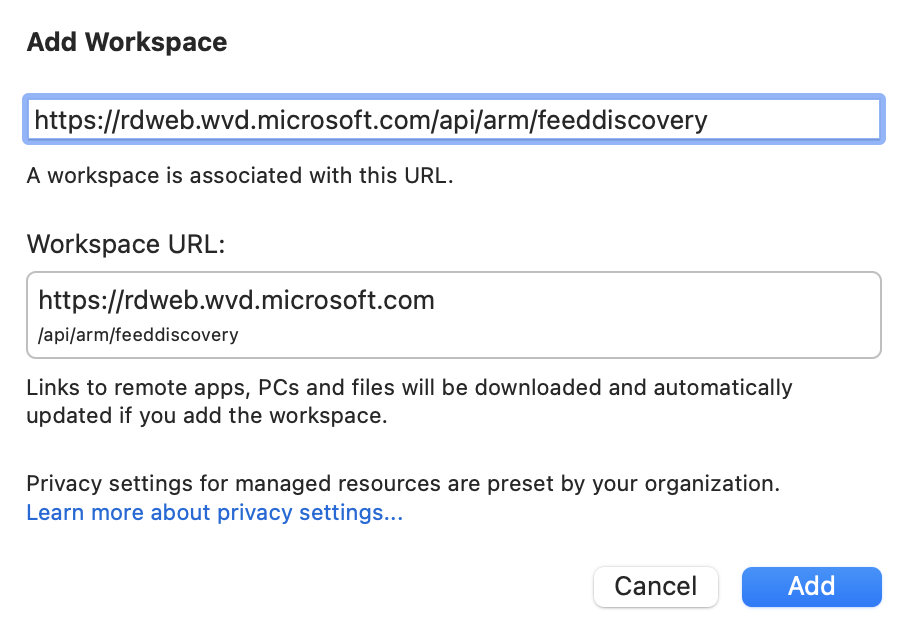
In the menu that pops up, enter this URL:
https://rdweb.wvd.microsoft.com/api/arm/feeddiscovery
Click Add.
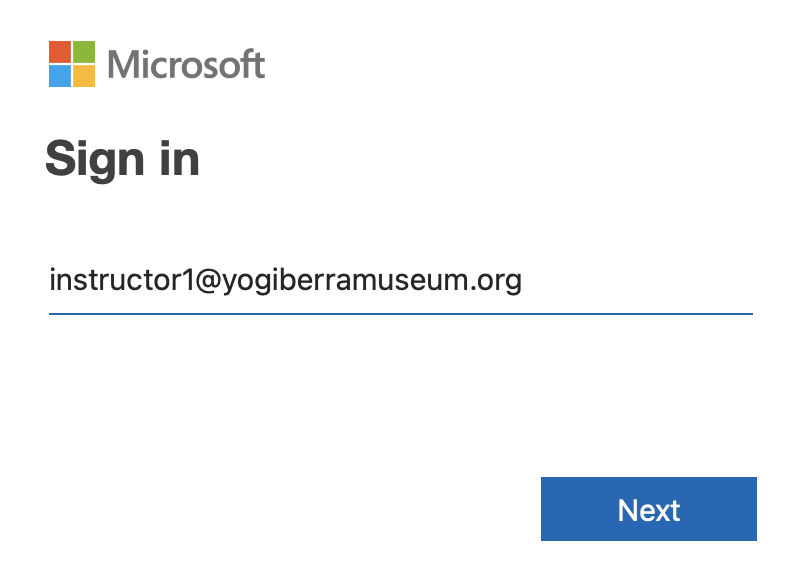
Log in with the credentials your teacher has provided.
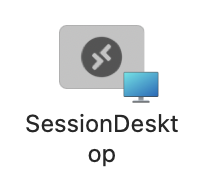
The Session Desktop icon should appear. Click to open it.
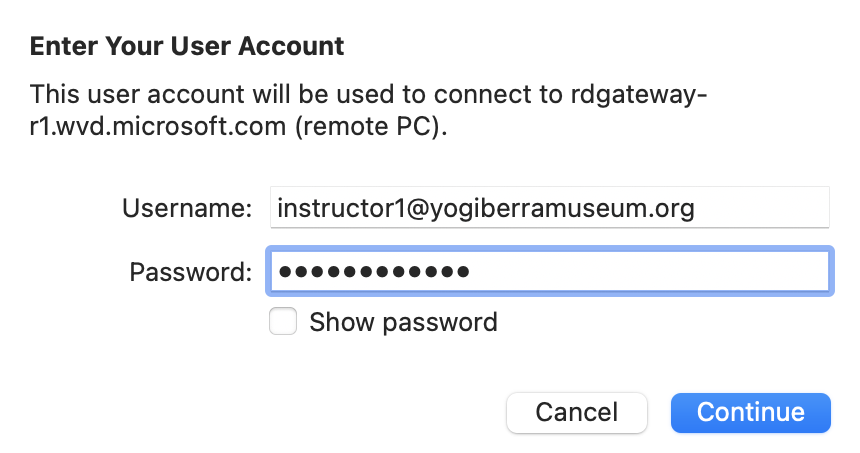
Enter your password one more time. Click Continue, and you will be in the Solid Edge environment.
Click the blue Solid Edge icon on the desktop:
The first time you log in, you’ll be prompted to choose your application settings. You can leave these as is and click OK.
Tip: If you ever want to change these settings, select Settings from the blue sidebar on the left.
At this point you’ll be within Solid Edge’s main interface and all set up to design. Good luck!